Help
Lichtfeld in eight topics, each with a few sentences and pictures from the app. The full help is in the app itself, under “Hilfe”. All pictures show made-up examples. The app is in German, so the screenshots show the German interface.
Plan and pins
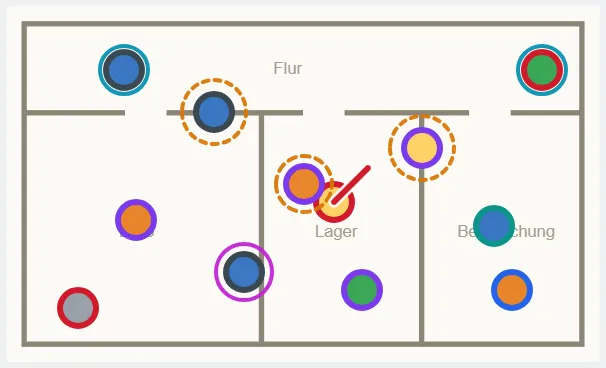
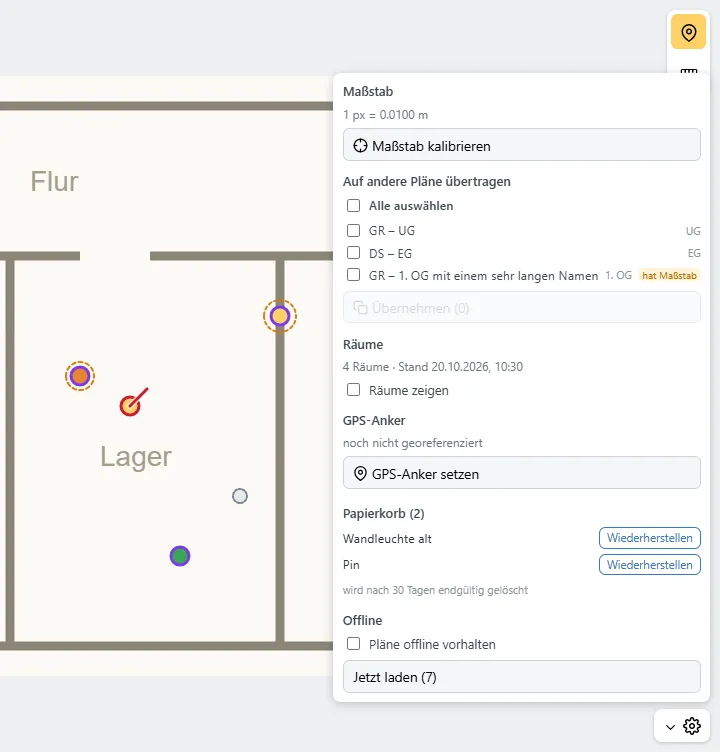
Lichtfeld shows every plan like a map: pan, zoom, tap a free spot – and a pin sits there with title, type and tags. A pin's fill shows its status (open, in progress, documented, closed), its outline its type (documentation, task, defect, construction progress, measurement). The cog holds the scale, room outlines from Revit, the recycle bin and "keep plans offline" for sites without signal.
Scale and GPS
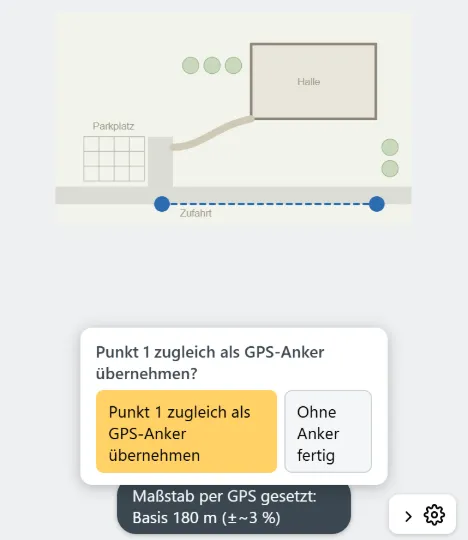
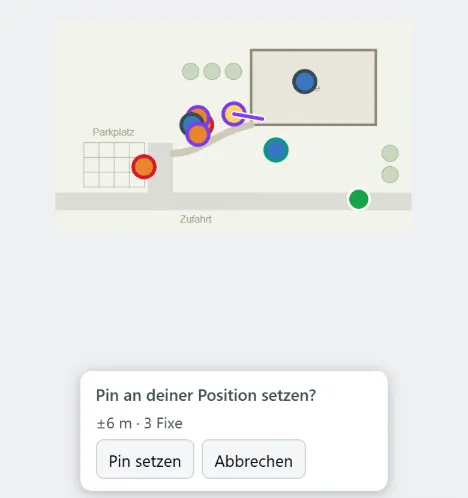
Set the scale from a known distance – tap two points, enter the length – or outdoors by GPS over a baseline of at least 100 m. A GPS anchor at a distinctive spot places the plan on the map. Then "you are here" shows your position, the compass your viewing direction, and "pin at my position" suggests a pin where you stand – and asks first if one is already close by.
When a plan is being prepared
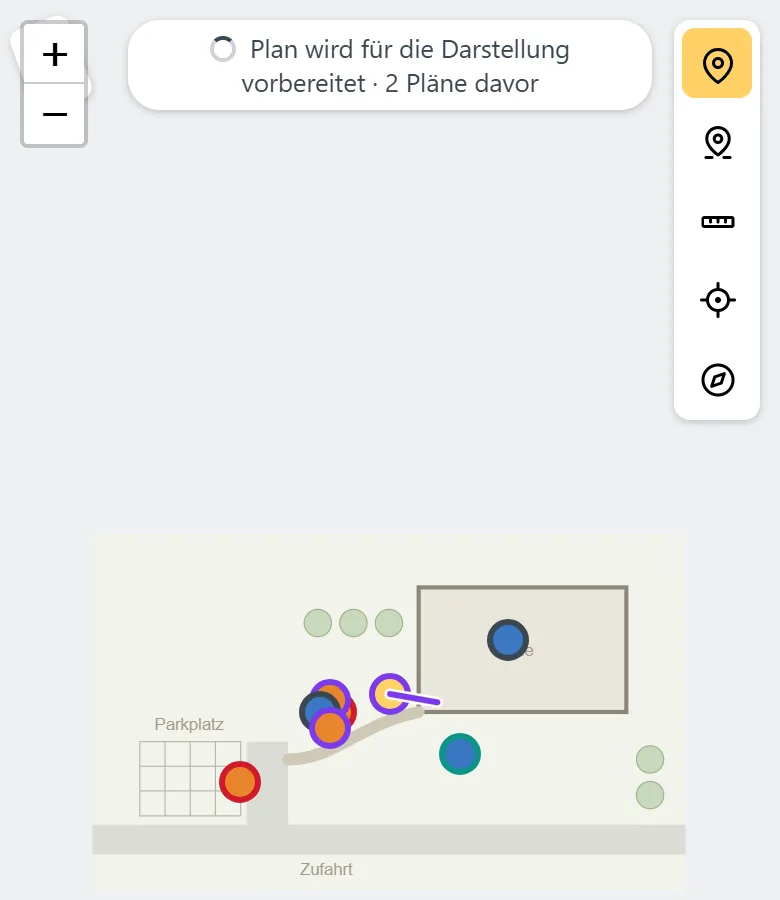
Large plans – a PDF, a sprawling outdoor site – are cut into tiles on the server so they stay sharp even when zoomed in close. Until then Lichtfeld shows the plan as a single image and you keep working as usual; a notice tells you how many plans are ahead in the queue. Once the tiles are ready, the plan switches over by itself.
Writing minutes
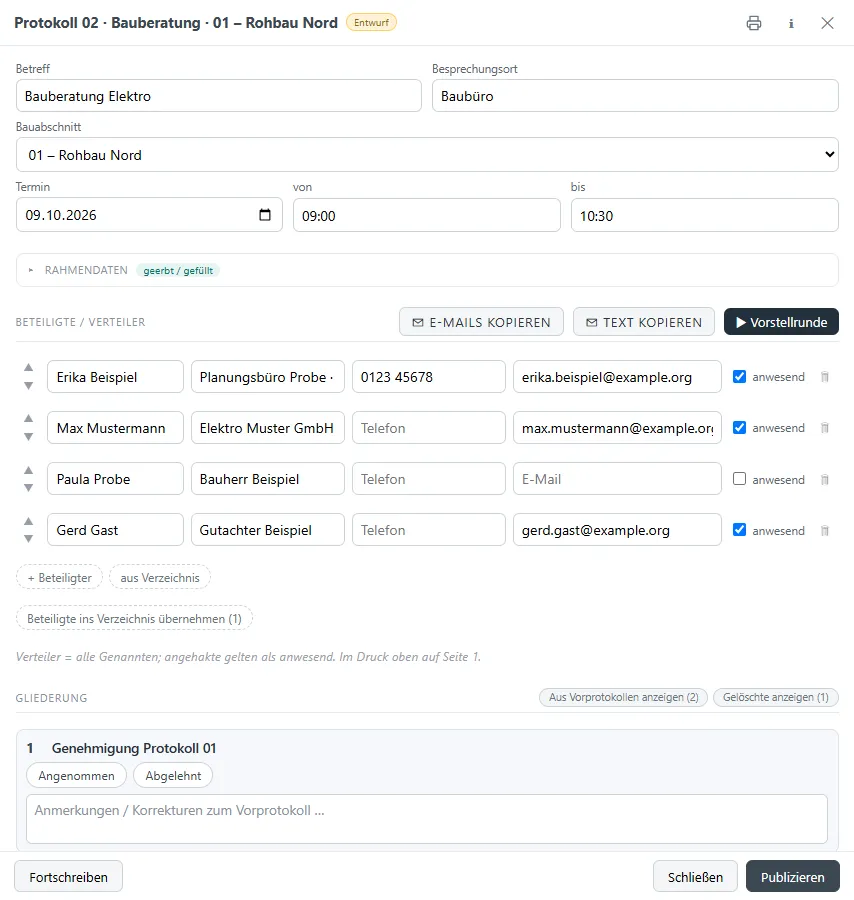
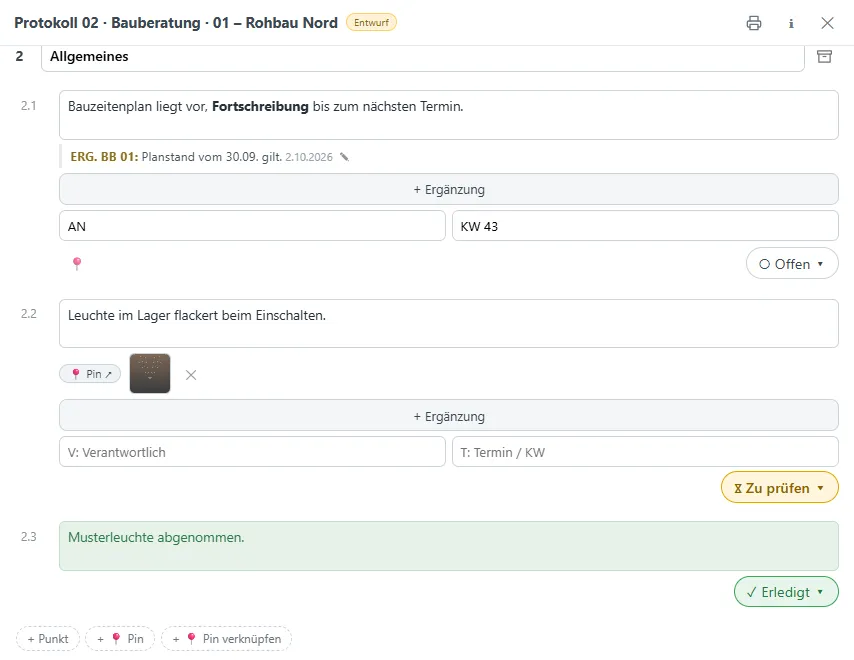
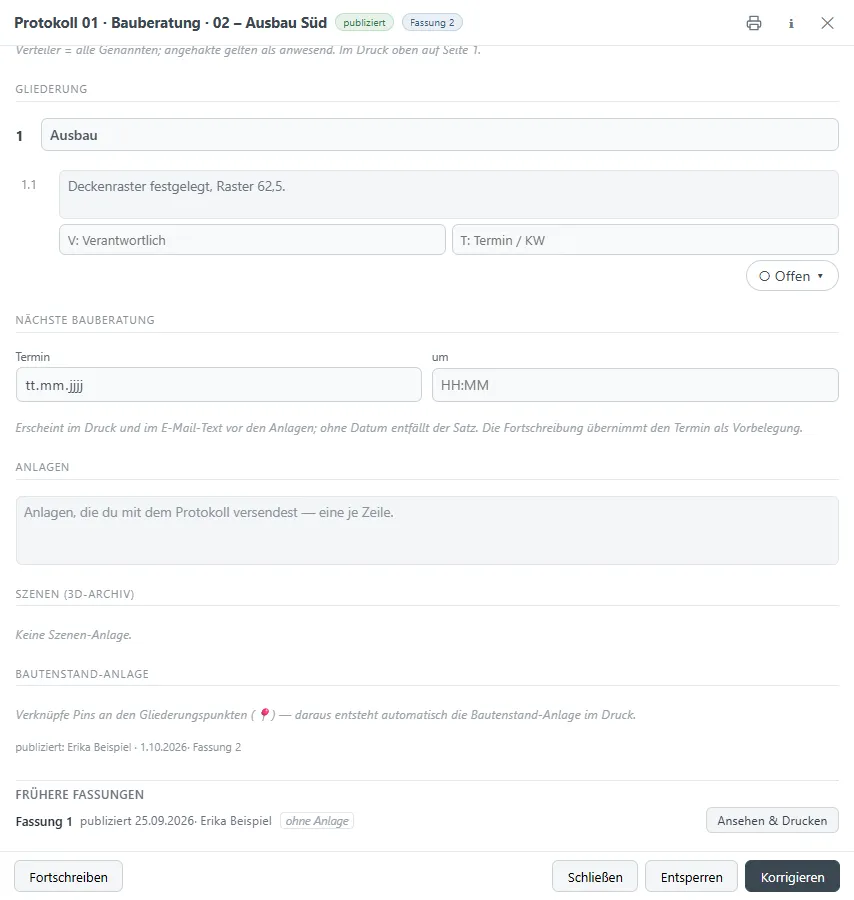
Site meeting, planning meeting, memo or progress report – start empty, from the office template or as a copy. Participants come from the office's contact directory or enter themselves in the introduction round while the device is passed around. Each item carries who is responsible, a due date and a status; pins attach right to the item and end up, with their photos, in the progress appendix.
Publishing minutes
Publishing freezes the minutes, including the photos of linked pins, and locks them. "Continue" creates the next meeting from it, carrying over the open items; "correct" adds a new version and keeps the old one readable. Several devices can write at the same time – changes made elsewhere appear by themselves.

3D viewer
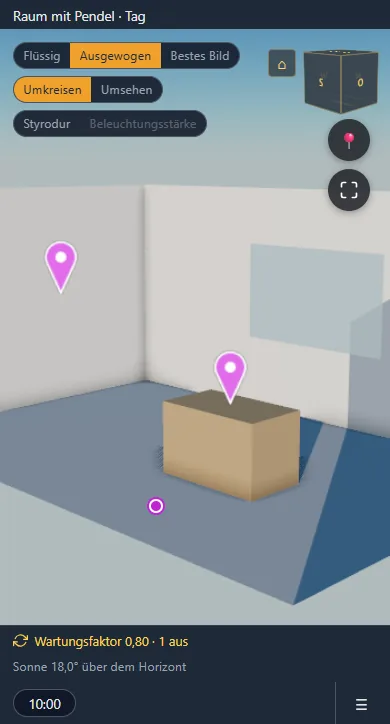
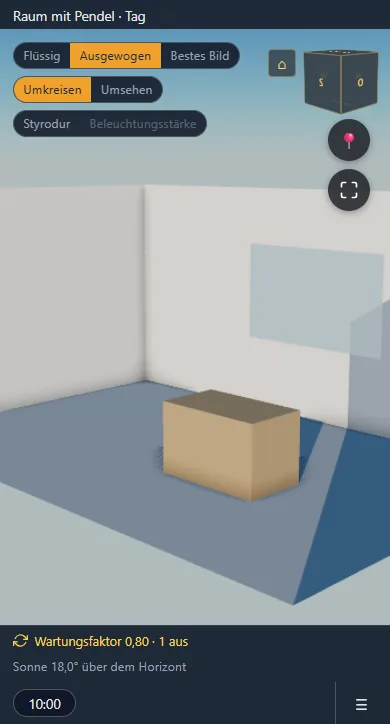
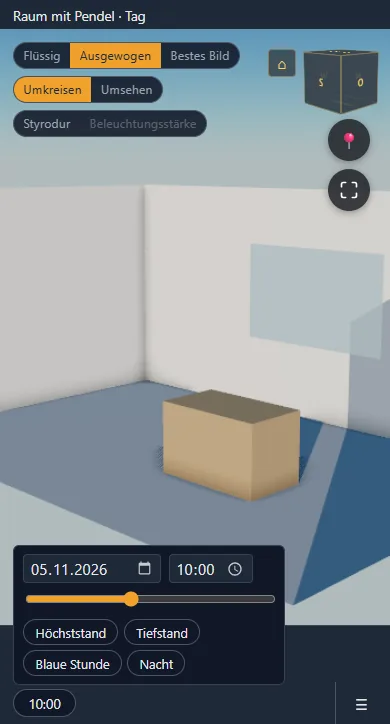
Models from Revit open in the browser, phones included: orbit or look around inside the room, time of day and the sun's position at the project's location, saved views. Scenes gather what you show in a meeting and switch between variants. A baked scene can be shared with the client by link.
Light map and false colours
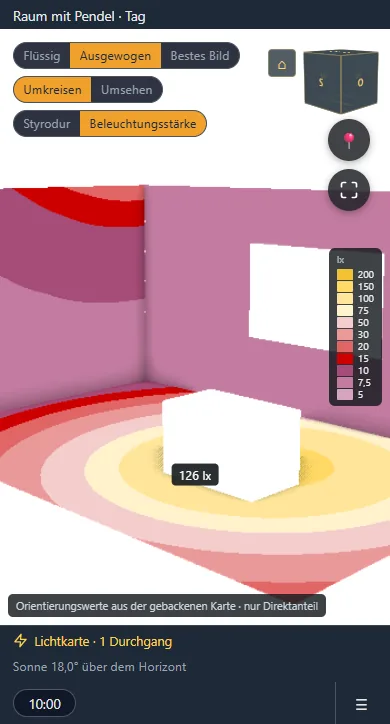
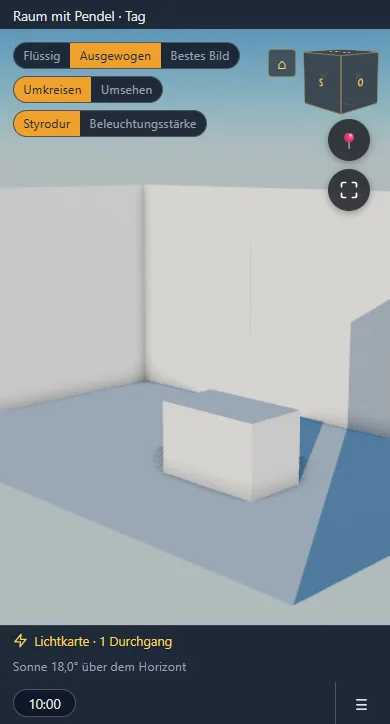
A light map is baked on a desktop computer: the installation's light, computed luminaire by luminaire onto the surfaces. With it even a phone shows the full lighting, and illuminance can be read in false colours – tap the image to get the value in lux. "Styrofoam" turns everything into a white model, just geometry and light.
3D pins
In the 3D viewer you place a pin right on a wall, a ceiling or the floor. It becomes an ordinary pin on the matching plan of the project and knows its height; in the model it then shows up as a needle.